
How to Add Sound and Video Clips to an eBay Listing (The Manual Method That Always Works)
The short version
If you are here because you heard eCommercePlayer's automatic eBay sync is offline and you are wondering whether you can still sell with audio or video — you can. And it takes about 30 seconds per listing.
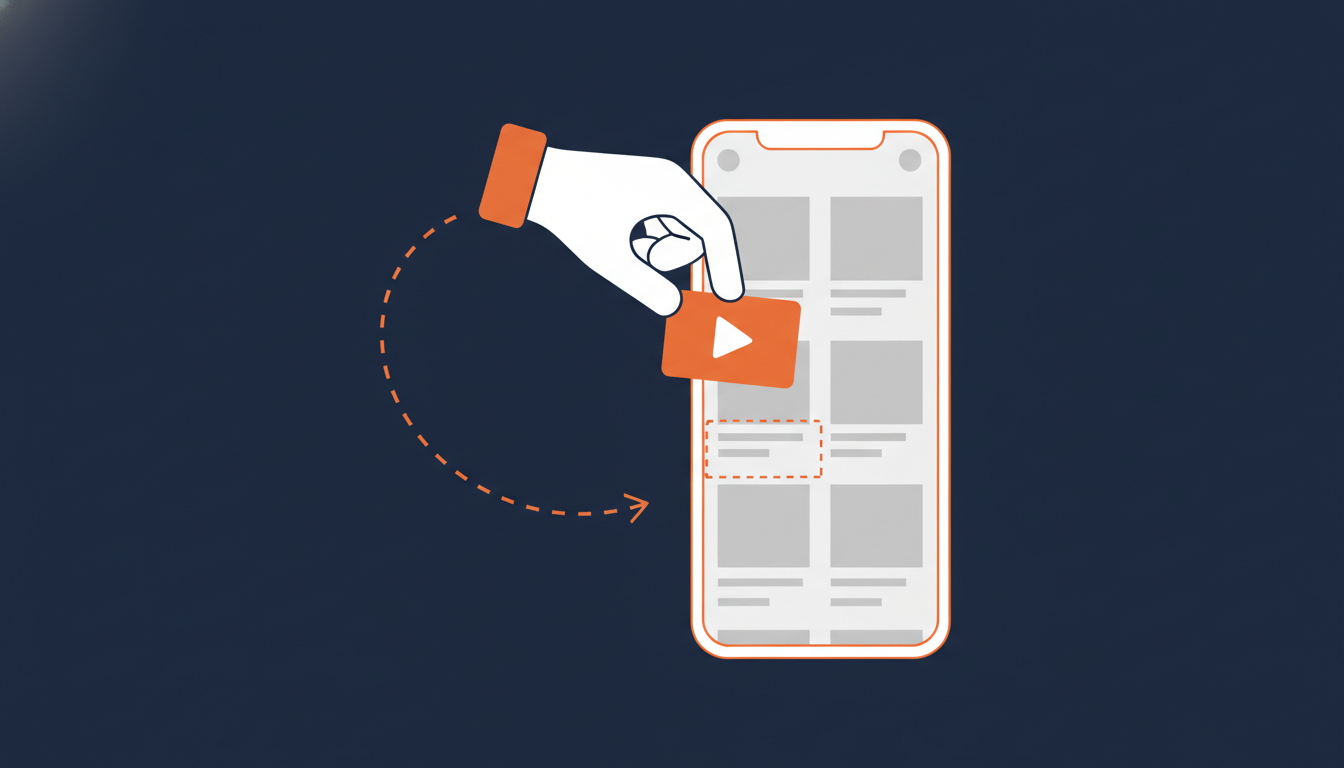
The manual embed method is a plain copy-and-paste. You open the Publish page for any clip in your eCommercePlayer dashboard, copy the Video Tag code, and paste it into the HTML tab of your eBay listing description. No eBay account connection, no OAuth, no app install. It has been working reliably in live eBay listings for years.
If you are on the free plan and just want to test this with five clips before committing, that is exactly what the free plan is there for. Sign up for free, upload a clip, and follow the steps below.
Why the manual method is the right choice right now
eCommercePlayer historically offered two ways to get a clip into an eBay listing:
- Automatic sync — we pull your active listings from eBay via OAuth and let you attach players to them from inside our dashboard.
- Manual Video Tag embed — you copy a snippet from the Publish page and paste it into your listing description yourself.
The automatic sync is currently offline while we work through an eBay API issue. Most customers who ran into this assumed it meant the product was unusable for eBay — so they paused their subscription and stopped listing with media.
That is the wrong move. The manual method is more reliable, more portable, and more resilient to eBay platform changes than the automatic sync ever was. It is plain HTML. eBay's active content ban from May 2024 (background here) wiped out iframes and scripts inside listing descriptions — but the Video Tag is not an iframe and not a script. It is a clickable thumbnail wrapped in an anchor tag, which eBay has always allowed and probably always will.
Sellers who never connected an eBay account to eCommercePlayer have been using this method exclusively the entire time the service has existed.
Step-by-step: copy, paste, done
Here is the full workflow. It works for both audio and video clips — the Video Tag is the same regardless of media type.
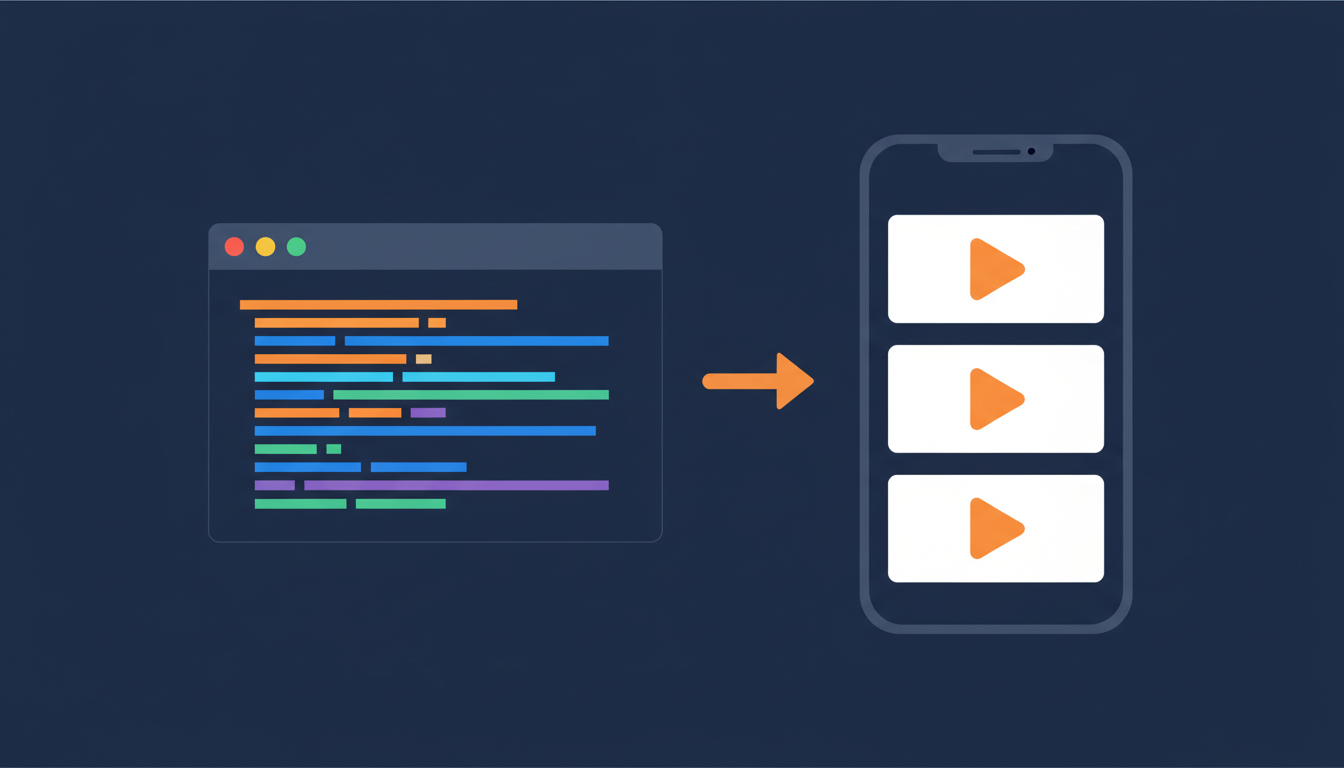
- Upload your clip. From your eCommercePlayer dashboard, go to Media and upload an audio or video file. Any common format works — MP3, WAV, MP4, MOV, and more. The file is converted to HTML5-compatible MP3/MP4 automatically.
- Wait for encoding. Processing usually takes a minute or two. You will see the status change from "Processing" to "Ready."
- Open the Publish page. From Media or Players, click Publish on the clip or playlist you want to embed.
- Copy the Video Tag code. On the Publish page, select the Video Tag sharing option and click Copy. This gives you a small snippet of HTML.
- Open your eBay listing. In eBay's Seller Hub (or the classic listing form), open the listing you are editing — or start a new one.
- Switch to the HTML tab. In the Item description section, click the HTML tab at the top of the editor. This step is critical. If you paste into the visual editor, eBay converts the angle brackets to literal text and the thumbnail never renders.
- Paste the code. Paste the Video Tag snippet into the HTML editor where you want the thumbnail to appear. Somewhere near the top of the description performs best.
- Save and preview. Save the listing, then preview it. You should see a clickable thumbnail. Click it to confirm your player opens and the clip plays.
For a more detailed walkthrough with screenshots, see the step-by-step guide.
Why sellers stop — and why they should not
Marsha, a long-time customer, wrote in this month asking whether eCommercePlayer was still connecting to eBay. When she found out the automatic sync was down, her first instinct was to pause her subscription. That is a reasonable reaction — if something is broken, you stop paying for it.
But the pause is based on a misunderstanding of what the product actually does. The player, the hosting, the encoding, the Publish page — all of that is working exactly the same as it always has. The only thing that has changed is one convenience feature on the dashboard side. The clips you upload today will still play on eBay tomorrow, because they are served from ecommerceplayer.com and embedded via standard HTML.
If you sell vinyl records, musical instruments, estate items, or anything where sound matters, walking away from audio previews is a bigger loss than most sellers realize. Buyers bid differently when they have heard the record or seen the instrument played. That does not change because an OAuth integration needs maintenance.
Common questions
Does the buyer leave eBay when they click the thumbnail?
Yes — the Video Tag opens a new tab on ecommerceplayer.com so the audio or video can play in a full-featured player. eBay blocks iframes inside listing descriptions, so there is no way to keep the player inline. Buyers click back to the listing to bid. In practice, the click-through does not hurt conversion; sellers report the opposite.
Will the thumbnail pass eBay's active content policy?
Yes. The Video Tag is a standard anchor-and-image HTML pair. It does not use JavaScript, iframes, Flash, or any of the things eBay's 2024 active content ban removed. eBay has not signaled any intent to block this kind of markup.
What if I accidentally paste into the visual editor?
You will see the raw HTML as text in the description, like <a href=...>. Delete it, click the HTML tab, and paste again. Always use the HTML tab.
Can I use multiple clips in one listing?
Yes. Either copy a Video Tag for each clip and paste them separately, or build a Player (playlist) in eCommercePlayer, put all your clips in it, and embed the single player's Video Tag. The player handles track switching for the buyer.
When will the automatic eBay sync be back?
We are working on it. Subscribe to the blog or email support if you want a heads-up when it is back online. In the meantime, the manual method is the right choice — it is faster for most workflows anyway.
Ready to try it
If you have an existing account, open your dashboard, upload a clip, and go to the Publish page. The Video Tag button is right there.
If you are new: create a free account. The free plan includes 5 clips, which is plenty to test the workflow with a single listing before you decide whether it is worth upgrading. Most sellers know within one listing — once a buyer clicks a thumbnail and hears your record, you will not want to list anything without audio again.
Want to see exactly what to click and where to paste? The full how-to is in the manual Video Tag guide with screenshots of each step.
Related Articles
Ready to add media to your listings?
Create your free account in under a minute. No credit card required.