
Copy-Paste HTML Templates That Embed Video in Your Marketplace Listings (2026 Mobile-First Guide)
The problem with marketplace video in 2026
Most online marketplaces still don't support native video inside the listing description. Sellers have three options — and two of them quietly hurt conversion.
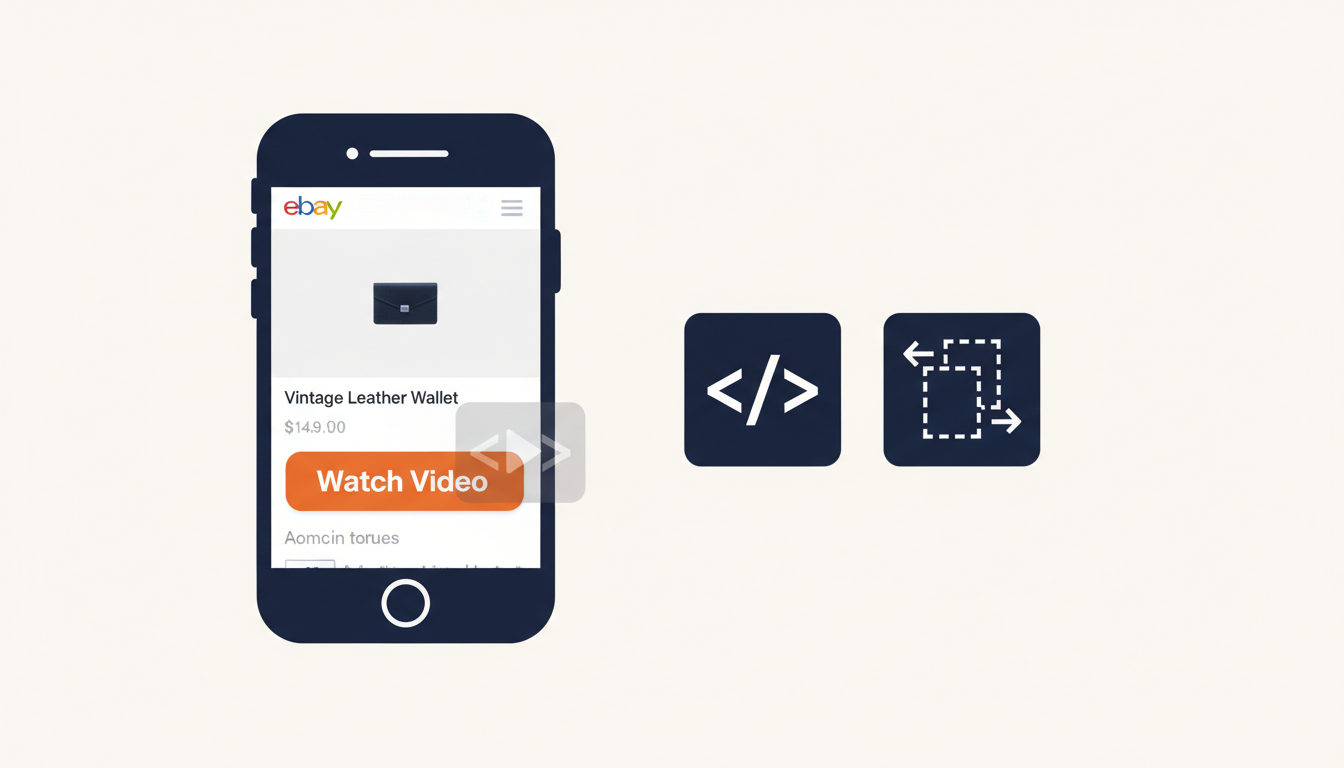
You can paste a plain YouTube link, but most marketplaces now show a "You are leaving this site" warning dialog the moment a buyer taps it. By 2026, that warning has become a conversion killer — roughly a third of interested buyers don't complete the jump. You can upload to the marketplace's own short-video feature (where it exists), but the uploaders are limited, the encoders re-compress aggressively, and the video is locked to that one platform. Or you can embed a hosted player inline with HTML, which renders a thumbnail and play button directly inside the description — no warning, no jump, no conversion loss.
The embed route only works if you have a listing description that accepts HTML. Most of the major marketplaces still do — eBay, Shopify, WordPress, Wix, Squarespace — but you need a template that actually works on mobile, where 70%+ of your buyers are now viewing from.
The three methods, compared
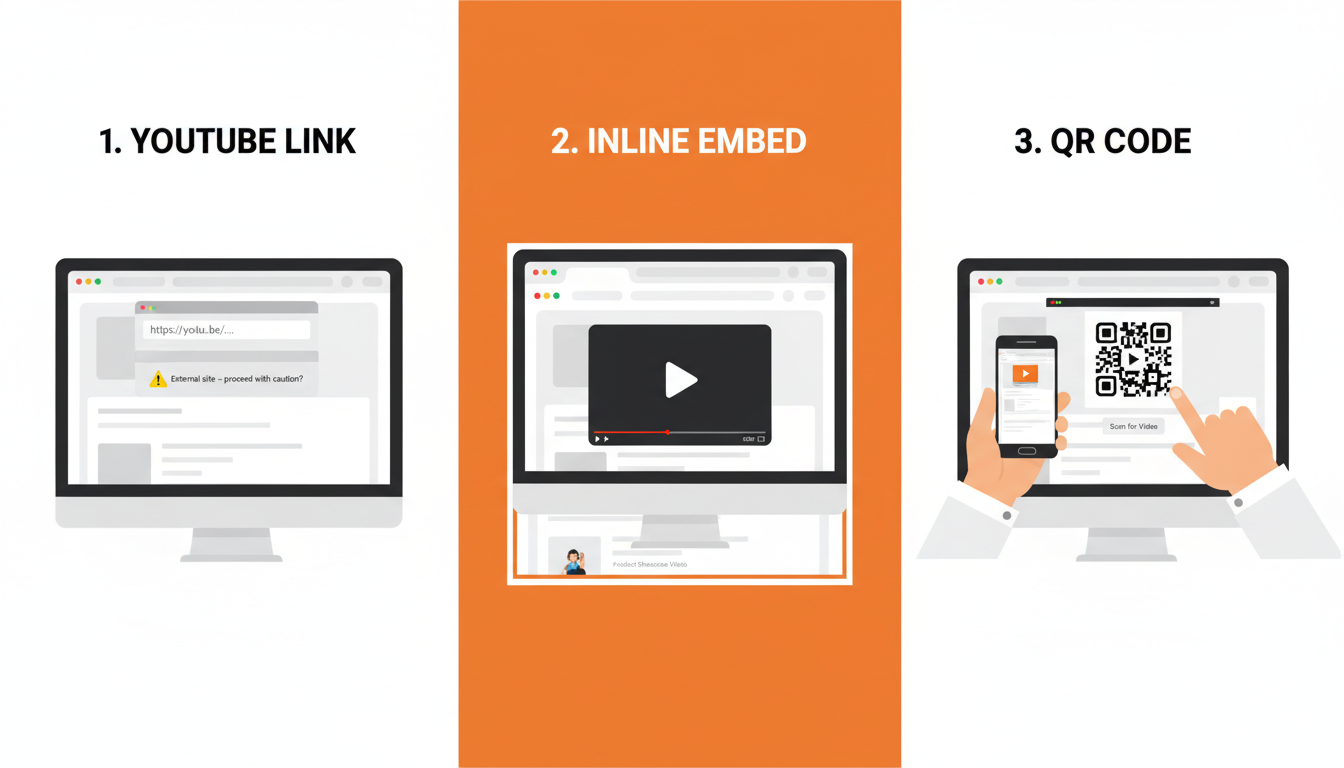
| Method | Works on | Warning dialog? | Inline play | Mobile |
|---|---|---|---|---|
| Plain YouTube link | Any marketplace | Yes (most) | No | OK |
| Marketplace native video | Only that one site | No | Yes | OK |
| HTML embed (hosted player) | Any HTML-friendly marketplace | No | Yes | Yes |
| QR code image | HTML-less marketplaces (Discogs, Reverb descriptions) | N/A | N/A | Scan-to-play |
The HTML embed method wins for the marketplaces that allow it. The QR code method fills the gap everywhere else — you drop the QR into a listing photo and buyers scan it with their phone. We'll cover both.
The 2026 seller data backs it up: listings with a visible video call-to-action within the first screen are seeing roughly a 20% higher bid or offer rate versus photo-only listings in the same category. The lift is biggest in electronics, instruments, and watches — anywhere a buyer wants to hear or see it work before committing.
The base HTML template (copy, paste, done)
Here's the block. Paste it anywhere in your listing description. Replace YOUR-LINK with your actual short URL or full player URL.
<div style="text-align:center;margin:16px 0;padding:16px;border:2px solid #FF4702;border-radius:8px;background:#fff;">
  <a href="YOUR-LINK" target="_blank" rel="noopener" style="display:inline-block;padding:14px 28px;background:#FF4702;color:#fff;text-decoration:none;border-radius:6px;font-weight:bold;font-size:16px;">▶ Watch the demo video</a>
  <div style="margin-top:8px;font-size:13px;color:#555;">30 seconds — see it in action before you buy</div>
</div>
A few notes on why this block works:
- Centered, boxed, and bright. It doesn't compete with body text — it announces itself.
- Inline styles only. Most marketplaces strip
<style>blocks and external CSS. Inline styles survive. target="_blank"+rel="noopener". Opens in a new tab without leaking the session back.- No JavaScript. Every HTML-friendly marketplace blocks scripts. This block never needs one.
- Real words in the button. "Watch the demo video" tells the buyer what happens next. Vague buttons like "Click here" get ignored.
Six category-specific variations
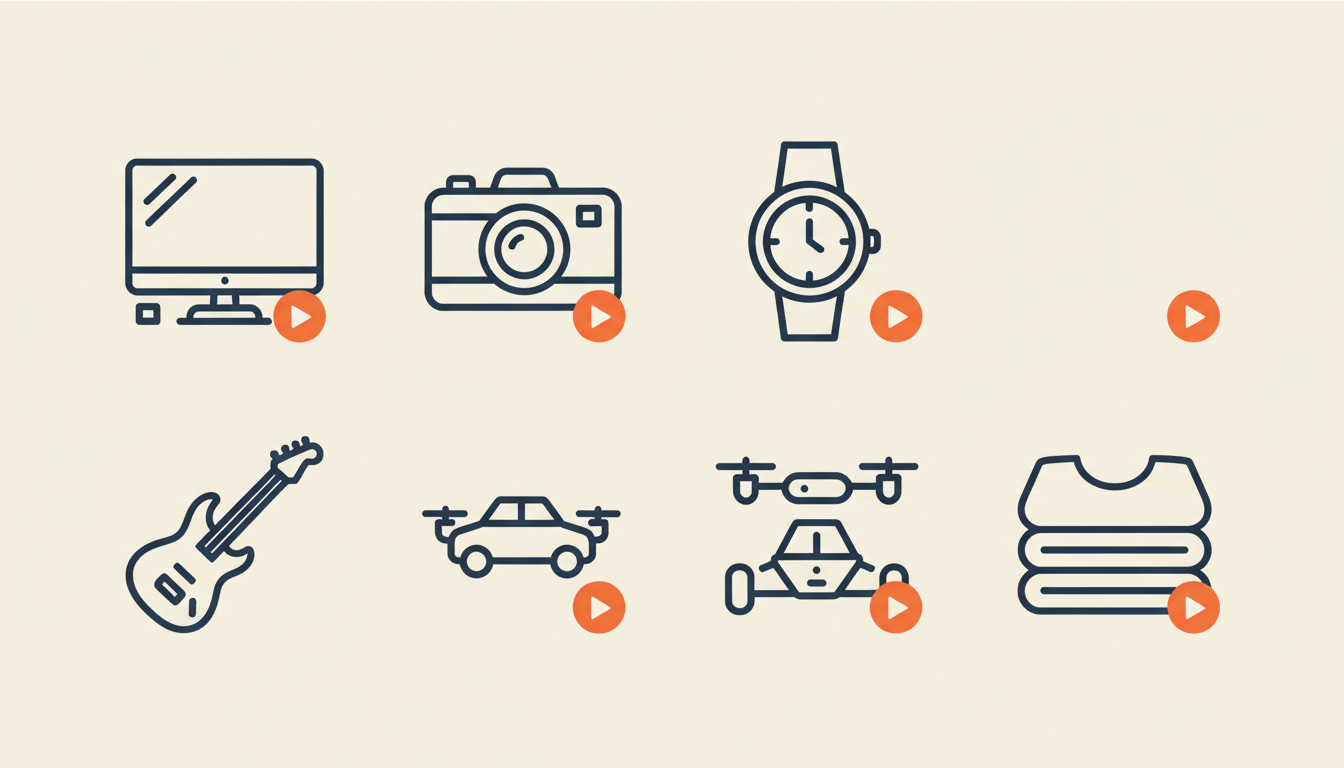
The generic "Watch the demo video" works, but category-specific copy converts better. Swap the button and subtitle text per what you sell:
- Electronics — Button:
▶ Power-on & function test. Subtitle:See every port, button, and feature working. - Cameras — Button:
▶ Shutter + sample shots. Subtitle:Hear the shutter, see the glass on a real subject. - Watches — Button:
▶ Running and timekeeping. Subtitle:Crown, movement, and 24-hour accuracy demo. - Musical instruments — Button:
▶ Tone + playability demo. Subtitle:Full tone on every string, played by a real player. - RC / drones — Button:
▶ Flight / drive test. Subtitle:Watch it fly, watch it drive. No static photos. - Apparel / vintage — Button:
▶ Fit + fabric movement. Subtitle:On-body video, real light, full rotation.
These are templates — edit the copy to match your voice. The structure stays the same: a named action, a one-line promise, and a button the buyer's thumb can actually hit.
The HTML-less case: QR codes for Discogs, Reverb, and others
Not every marketplace accepts HTML. Discogs stripped HTML from listing descriptions years ago. Reverb is inconsistent. Bandcamp external pages don't take it at all.
For those, put a QR code on one of your listing photos. Buyers on mobile (most of them) can scan it and land directly in your hosted player. It's a five-second copy job:
- Open the player's Publish page on eCommercePlayer. The QR code is generated automatically next to the short URL. Click Download QR.
- Open your listing photos in any image editor. Paste the QR into a corner of your main photo — roughly 20% of the photo's width is the sweet spot (big enough to scan, small enough to not overwhelm the product).
- Add a small caption above or below the QR: "Scan to hear/see." Buyers know what to do.
- Re-upload the composite image as your listing photo.
The same Publish page also has a Copy + CTA button that gives you your-link — Tap to listen or watch in one click, ready to paste anywhere a short URL alone would feel bare.
Mobile preview: what buyers actually see
The single most common mistake sellers make with HTML templates is designing on desktop and never checking the mobile render. About 70% of marketplace traffic in 2026 is mobile, and the marketplace mobile app often renders your HTML differently from the website.
Before you commit to a template, do this:
- Save a draft listing with your HTML pasted in.
- Pull the listing up on your phone — both in the marketplace's own app and in a mobile browser (they often render differently).
- Check three things: Is the button centered and easy to tap? (at least 44x44 pixels). Does the video thumbnail actually show, or is it a white box? (some apps block remote images — use an explicit
alttext so the link is still tappable). Does the description above/below the button still read naturally?
If something looks wrong, the fix is almost always simpler HTML. Remove the border. Drop the background color. Keep the button and one line of subtitle. A dead-simple block that looks right on mobile beats a fancy block that breaks.
Putting it all together
The workflow we recommend to every seller:
- Host your video once — upload the clip to eCommercePlayer (or your hosted-player of choice). You'll get a short URL and a QR code.
- Paste the HTML block into every HTML-friendly listing's description. One template, 30 seconds per listing, category-specific button copy.
- Drop the QR code into the main listing photo for marketplaces that don't take HTML.
- Add the text CTA — "Tap to listen or watch" appended to the short URL — in any listing field that takes text but not HTML (Discogs notes, Mercari description, Facebook Marketplace text field).
One video, four delivery methods, every marketplace covered. The work is front-loaded — you spend the afternoon setting up your template once, then every new listing takes seconds.
If you don't have a host yet, eCommercePlayer's free plan covers 5 clips and includes all four sharing methods — the HTML block, the QR code, the short URL, and the email hand-off — for the price of creating an account.
Related Articles
Ready to add media to your listings?
Create your free account in under a minute. No credit card required.